Connect Calendly and Zoom to power AI-driven automation
- ノーコードAI自動化
- 完全な監査証跡とコントロール
- SOC 2 およびGDPR準拠
- 簡単なビジュアルワークフロービルダー
- 9、000+ アプリ、 450+ AI ツール
- Free階層が利用可能
最初の自動化ワークフローを起動する
Start with a template that brings Calendly and Zoom together. Build enterprise-grade automation in minutes.
最も人気のあるテンプレート


Zapierの仕組み
Zapier makes it easy to integrate Calendly with Zoom - no code necessary. See how you can get setup in minutes.


トリガーを選択
A trigger is the event that starts your Zap—like a "Contact Created" from Calendly.
アクションを追加する
トリガーの後にアクションが実行されます(Zoom の「会議の作成」など)。
接続されています!
Zapierはシームレスに接続しますCalendlyそしてZoom、ワークフローを自動化します。
サポートされているトリガーとアクション
Zapier は、アプリを接続して反復的なタスクを自動化するワークフローの作成に役立ちます。トリガーはワークフローを開始するイベントであり、アクションは Zap が実行するイベントです。
- 無料プランコピー
- OAuth Scope Permissions
試してみるトリガーインスタント- 無料プランコピー
- OAuth Scope Permissions
試してみるトリガーインスタント- 無料プランコピー
- Webhookサブスクリプションスコープ必須
試してみるトリガーインスタント- 無料プランコピー
- Webhookサブスクリプションスコープ必須
試してみるトリガーインスタント

- 無料プランコピー
- OAuth Scope Permissions
試してみるトリガーインスタント- イベントキャンセル
イベントがキャンセルされたときにトリガーされます。
試してみるトリガーポーリング - 無料プランコピー
- Webhookサブスクリプションスコープ必須
- イベントタイプ
試してみるトリガーインスタント- 無料プランコピー
- OAuth Scope Permissions
試してみるトリガーインスタント
For AI agents & developers
Use Calendly and Zoom with AI agents and code
Beyond Zap workflows. Call Calendly and Zoom actions directly from your AI client or your codebase, using the same 9,000+ app integrations Zapier already runs.
Connect via Zapier MCP
Expose Calendly and Zoom actions as tools in any MCP client. Authenticate once, then call them in natural language.
Example actions on this page
Works with
Claude · ChatGPT · Cursor · any MCP-compatible client
Call from code with the Zapier SDK
Trigger Calendly and Zoom actions from backend services, scripts, or agent code.
Install
# TypeScript / Node
npm install @zapier/zapier-sdk
Run an action
import { createZapierSdk } from '@zapier/zapier-sdk';

const zapier = createZapierSdk();
await zapier.runAction({ /* calendly / zoom action */ });Pythonパッケージはまだありません。SDKはTypeScript専用です(@zapier/zapier-sdk)。MCPサーバーのURLはあなたのアカウント専用です。zapier.com/mcpで取得してください。
Zapier は、 2023の Forbes Cloud 100社の87 % が選択した自動化プラットフォームです。




93%
Zapierの使用により仕事の効率が上がったと語る顧客
25m
顧客はプラットフォーム上で25百万以上のZapを作成しました
6 分
平均的なユーザーはZapのセットアップに6分もかかりません
CalendlyとZoomをつなぎ、ビジネスの重要な部分を統合します
Zapier を使用すると、基本的なデータ入力からエンドツーエンドのプロセスまですべてを統合できます。ここでは、Zapier を使用して自動化されているビジネスに重要なワークフローの一部を紹介します。
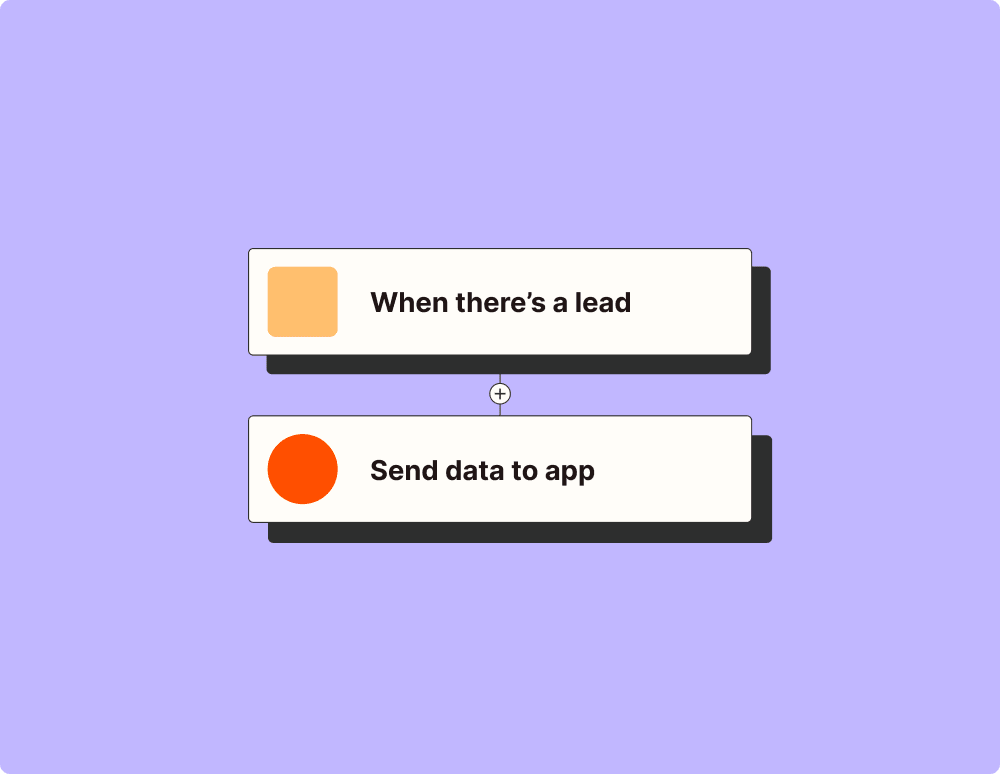
リード管理を自動化し、コンバージョン率を向上させる
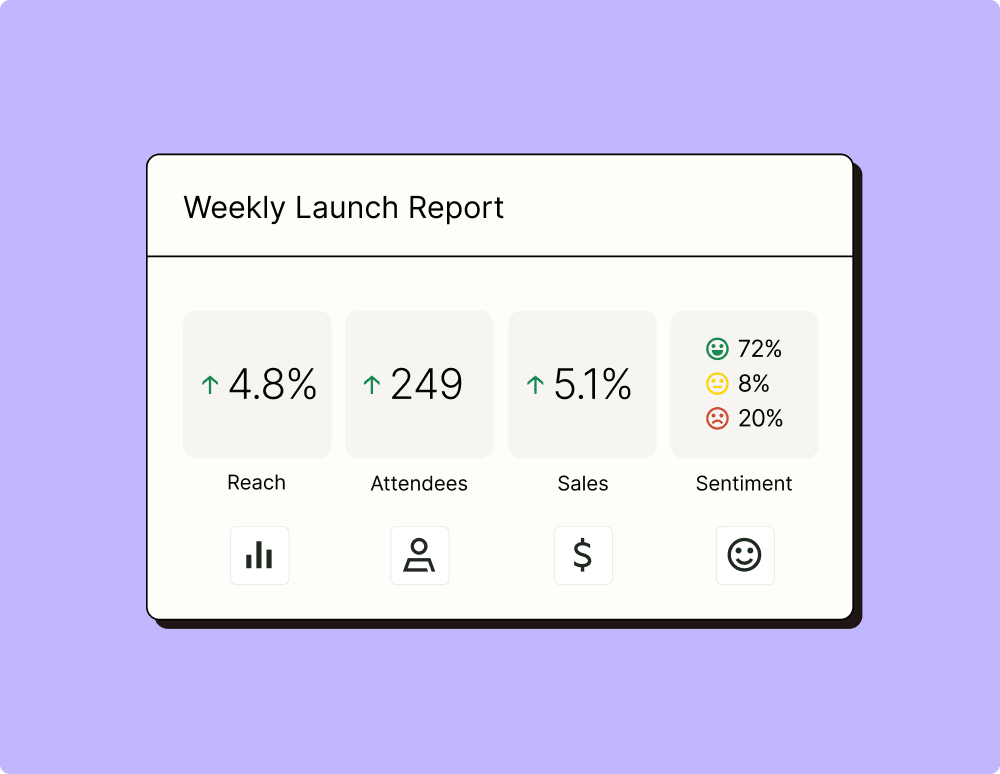
自動化でより効果的なキャンペーンを作成する
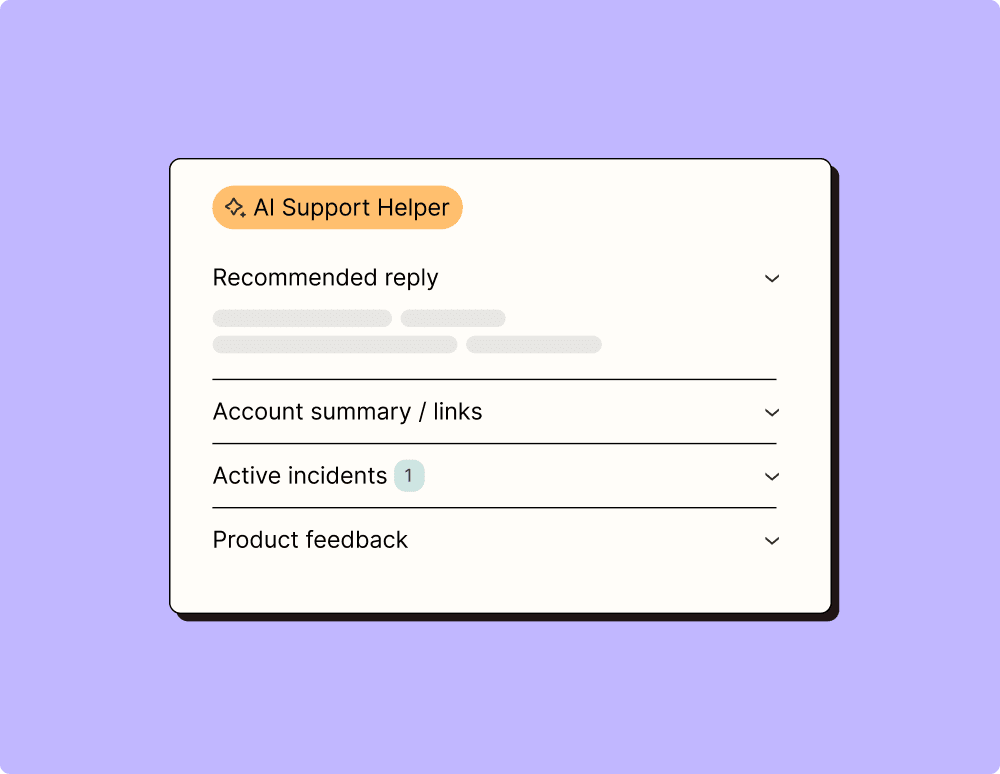
自動化の助けを借りて世界クラスのサポートを提供する
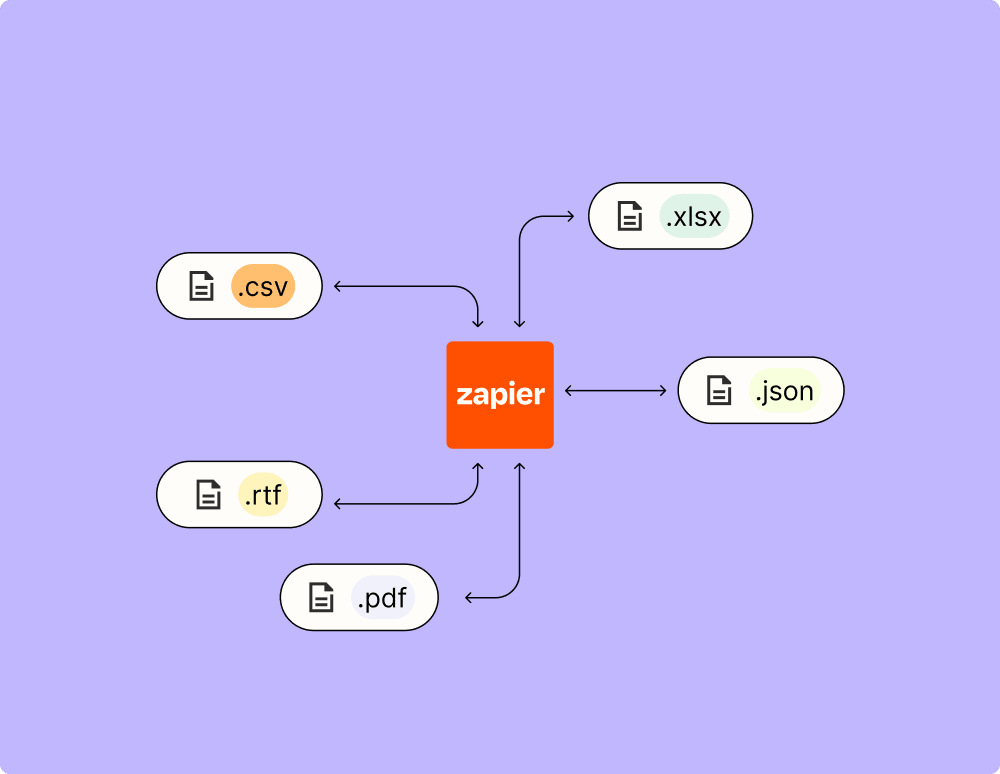
実用的な最新データへの道を自動化
自動化でインシデントをより早く解決
ZapierブログでCalendlyの自動化の方法を学びましょう
ZapierブログでZoomの自動化の方法を学びましょう
AIでワークフローを効率化

Frequently Asked Questions about Calendly + Zoom integrations
Zapier自動化は初めてですか?あなただけではありません。Zapier がCalendlyおよびZoomどのように連携するかについてのよくある質問への回答を以下に示します。
CalendlyをZoomと統合するにはどうすればよいですか?
To integrate Calendly with Zoom, you need to connect your Zoom account with Calendly's integrations. This allows you to automatically generate Zoom meeting links for your Calendly events. First, go to your Calendar Connections page on Calendly and select Connect for Zoom. After signing in, authorize the connection, and set Zoom as the default location for all meetings.
Once integrated, how does scheduling work between Calendly and Zoom?
Once you've integrated Calendly with Zoom, scheduling becomes a streamlined process where any event booked through your Calendly link automatically creates a corresponding Zoom meeting link. This link is included in the confirmation email sent to attendees.
Can I customize the settings of my Zoom meetings within Calendly?
Yes, after integrating, you can customize settings like meeting topics and meeting durations directly from within the event type settings in Calendly. Changes in these settings will reflect on the scheduled Zoom meetings.
Does the integration allow automatic updates if an event is rescheduled or canceled?
Yes, automatic updates occur with this integration. If an event scheduled via Calendly is rescheduled or canceled, attendees receive an updated email notification reflecting these changes along with new Zoom meeting details if applicable.
Are there any prerequisites for using the integration between Calendly and Zoom?
Ensure you have an active account on both platforms: a paid or free version of both Calendly and Zoom can be used. Additionally, make sure to authenticate and grant necessary permissions when integrating. You must also assign 'Zoom' as the location type in your Event Type settings.
What if my invitations don't include a location after integrating with Zoom?
If invitations from your Calendar do not include a location post-integration, verify that 'Zoom' has been selected as your default event location under each relevant Event Type setting within your Calendly account.
How are time zone differences handled when using this integration?
Calendly automatically adjusts for time zone differences based on each invitee's selected time zone when they book an event. The generated Zoom link will reflect accurate timing according to each participant's specified time zone.


